
This is a FUN talking TextaBot for the official BBC micro:bit V2 where you get to build your VERY OWN TALKING TEXTABOT FROM SCRATCH!


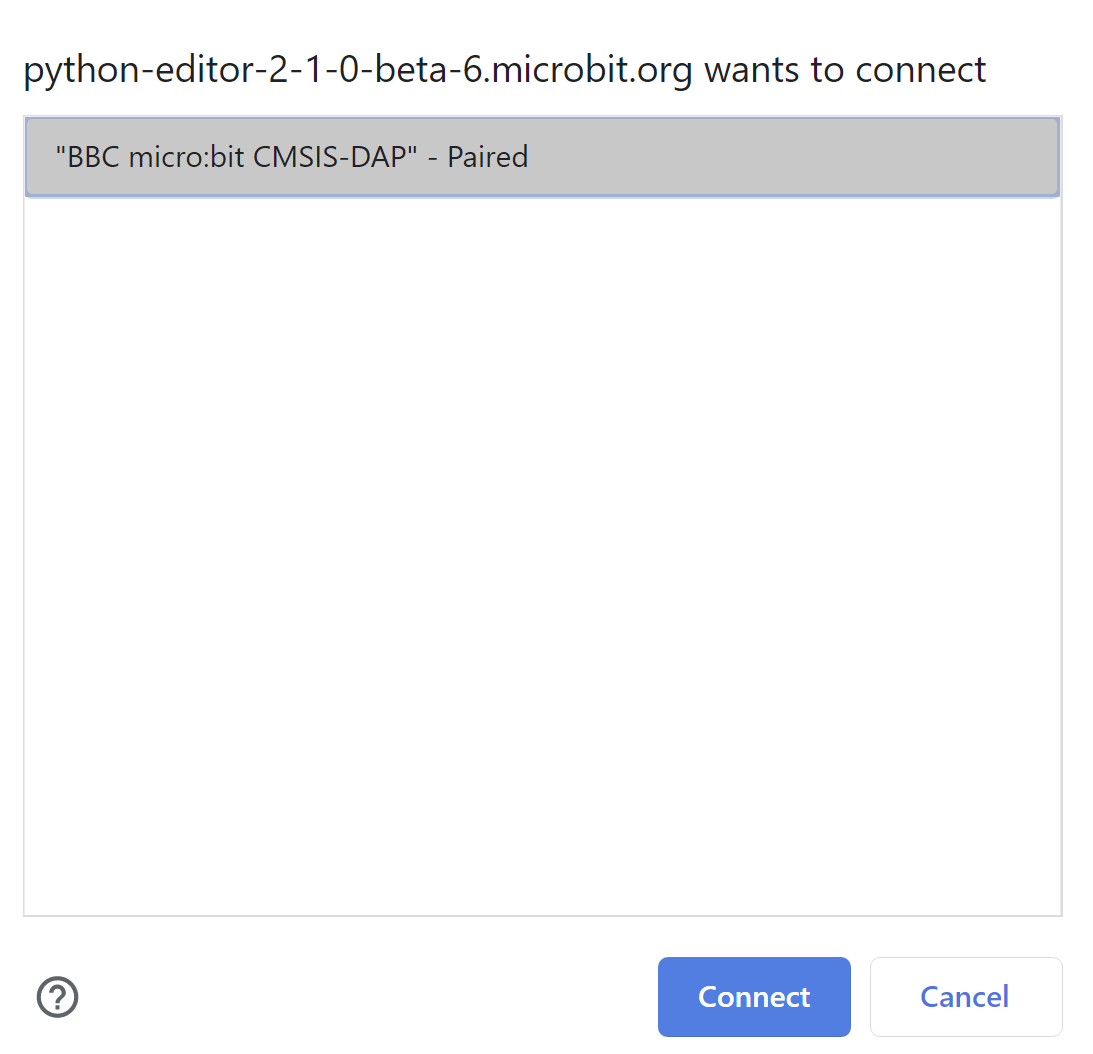
*PLUG IN USB CABLE TO COMPUTER AND DEVICE


import time

import gc
from microbit import *
from speech import say

# Generic talking educational database
generic_ted = {
                'your name': 'My name is Mr. George.',
                'food': 'I like pizza.',
                # ADD MORE HERE
              }

# Define bot talking speed
SPEED = 95

# Button press time
PRESS_TIME = 0.2

# Create alphabet list
alphabet = [
                'a',
                'b',
                'c',
                'd',
                'e',
                'f',
                'g',
                'h',
                'i',
                'j',
                'k',
                'l',
                'm',
                'n',
                'o',
                'p',
                'q',
                'r',
                's',
                't',
                'u',
                'v',
                'w',
                'x',
                'y',
                'z'
           ]

# Create empty word string
word = ''

# Create alphabet_position and init to 0
alphabet_position = 0

# Use -1 as arrays are 0 indexed
alphabet_length = len(alphabet) - 1

# Init display with initial value
display.show(alphabet[alphabet_position])
time.sleep(PRESS_TIME)


def bot(ted, question):
    """
    Function to handle bot

    Params:
        ted : dict
        question : str
    """
    # Init LED happy image
    display.show(Image.HAPPY)

    # This is an advanced topic as well however this little function
    # cleans out the unnecessary global objects or variables on what
    # we call the heap area in memory
    gc.collect()

    # Init response object
    response = ''

    # We want to make sure that our dictionary database can
    # find all values even if you use a capital letter
    # so we convert everything to lowercase
    question = question.lower()

    # If you type something other than an empty string that means
    # question has a value so the rest of the code will continue
    # on
    if question:
        # This is a bit complicated do not worry about this for now
        # all this is doing is looking through our dictionary database
        # and seeing if our input value has the word or words which
        # match an entry in the dictionary database and if it does
        # put the value in the _response object
        response = [val for key, val in ted.items() if key in question]
        gc.collect()

        # If our bot got a response from us then make sure
        # we trigger the speaking or suprised image so our bot
        # can open its mouth to talk and then have our bot
        # talk to us in our REPL and by hearing it speak as well
        # and if the user types in a trigger work that is not
        # recognized then provide a custom default response
        if response:
            display.show(Image.SURPRISED)
            print('BOT: {0}'.format(response[0]))
            say(str(response[0]), speed=SPEED)
            display.show(Image.HAPPY)
        else:
            display.show(Image.SURPRISED)
            print('BOT: That is not something I am familiar with.')
            say('That is not something I am familiar with.', speed=SPEED)
            display.show(Image.HAPPY)

    gc.collect()


try:
    while True:
        if button_a.is_pressed():
            if alphabet_position >= alphabet_length:
                time.sleep(PRESS_TIME)
            else:
                alphabet_position += 1
                display.show(alphabet[alphabet_position])
                time.sleep(PRESS_TIME)
        if button_b.is_pressed():
            if alphabet_position <= 0:
                time.sleep(PRESS_TIME)
            else:
                alphabet_position -= 1
                display.show(alphabet[alphabet_position])
                time.sleep(PRESS_TIME)
        if pin_logo.is_touched():
            word += alphabet[alphabet_position]
            display.scroll(word)
            time.sleep(PRESS_TIME)
            display.show(alphabet[alphabet_position])
        if not pin1.read_digital():
            space = ' '
            word += space
            display.show('_')
            time.sleep(PRESS_TIME)
        if not pin2.read_digital():
            bot(generic_ted, word)
            word = ''
            time.sleep(PRESS_TIME + 0.75)
            display.show(alphabet[alphabet_position])

        gc.collect()
except:
    pass


This is a little itty bitty baby TextaBot that only knows how to respond to "What is your name?" or "What is your favorite food?" so this is a great chance to teach it everything you want by adding in additional trigger word or words and a response phrase you would like your bot to say. Let's look at an example. At the top of the code you will see the following.
# Generic talking educational database
generic_ted = {
                'your name': 'My name is Mr. George.',
                'favorite food': 'I like pizza.',
                # ADD MORE HERE
              }
Let's say we want to add the trigger words favorite candy and the bot's response as I like chocolate. and to do this lets put a blank line under # ADD MORE HERE and make the code look like the following.
```python
# Generic talking educational database
generic_ted = {
                'your name': 'My name is Mr. George.',
                'favorite food': 'I like pizza.',
                # ADD MORE HERE
                'favorite candy': 'I like chocolate.',
              }
The following are a list of controls to work with TextaBot.
- A Button = Cycle through the letters until you find the letter of choice to build our word.
- B Button = Cycle-back through the letters until you find the letter of choice to build our word.
- Logo Image = Add the currently displayed letter to the word. The word will start out blank so if the letter currently displayed is
aanawill be added to the word. You can add more letters to your word by using the A and B Buttons to cycle and then press the Logo Image again to add the next currently displayed letter to the word. - Pin1 = Touch Pin1 to add a space if you are making more than one word for your trigger words.
- Pin2 = Touch Pin2 to send your word or words to Mr. George so he can respond to you!
Let's teach our TextaBot more stuff! Repeat 12, 13 and 14 as much as you like!