Add Desktop app #473
+162
−1
There are no files selected for viewing
This file contains hidden or bidirectional Unicode text that may be interpreted or compiled differently than what appears below. To review, open the file in an editor that reveals hidden Unicode characters.
Learn more about bidirectional Unicode characters
This file contains hidden or bidirectional Unicode text that may be interpreted or compiled differently than what appears below. To review, open the file in an editor that reveals hidden Unicode characters.
Learn more about bidirectional Unicode characters
| Original file line number | Diff line number | Diff line change |
|---|---|---|
| @@ -0,0 +1,158 @@ | ||
| --- | ||
| title: Plane desktop app | ||
| description: Install and use the Plane desktop app for macOS, Windows, and Linux, including connecting to your instance, working in tabs and windows, notifications, and updates. | ||
| --- | ||
|
|
||
| # Plane Desktop App | ||
|
|
||
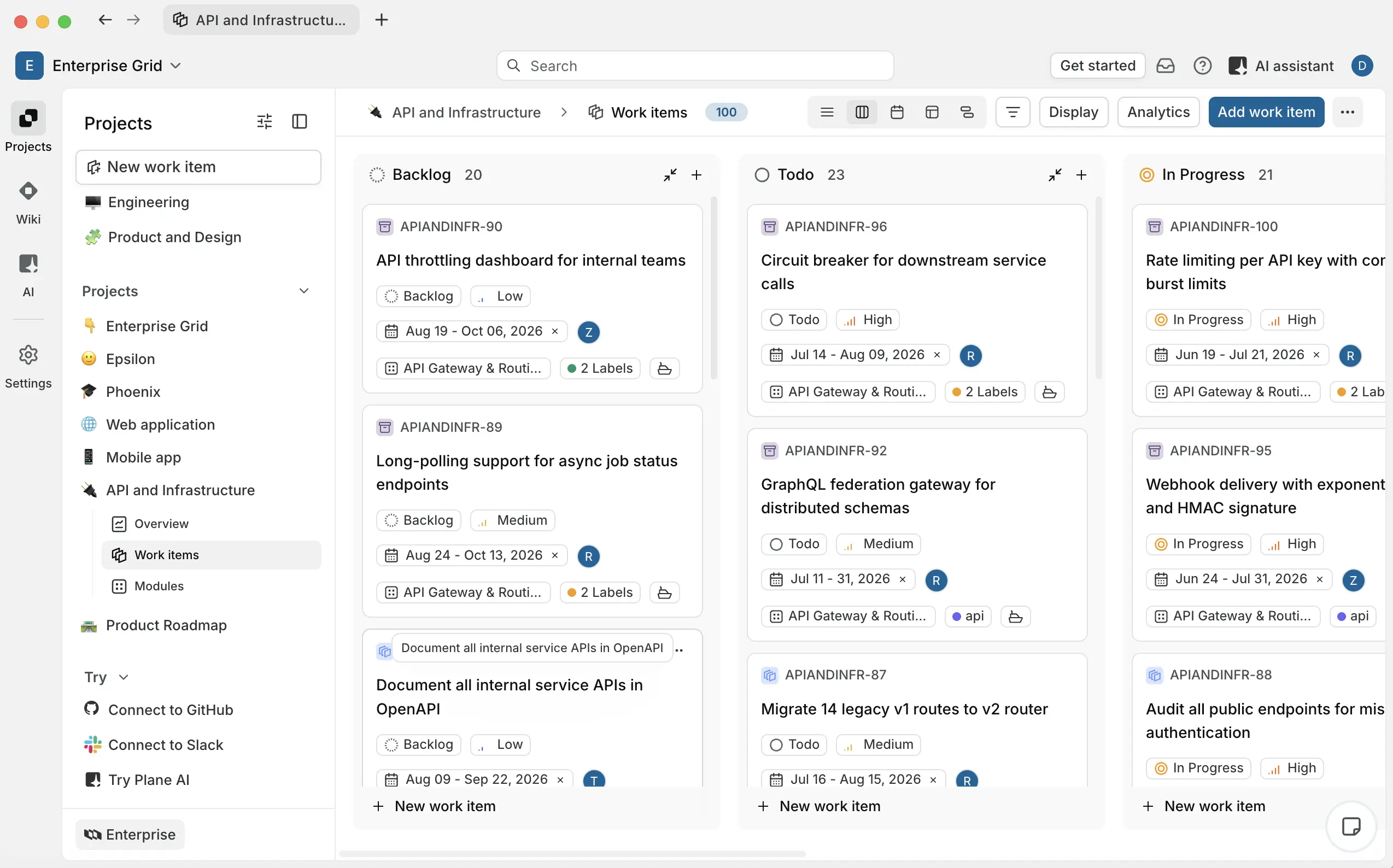
| The Plane desktop app is a dedicated application for macOS and Linux. | ||
|
|
||
|  | ||
|
|
||
| It runs Plane in its own window, separate from your browser, with desktop conveniences like browser-style tabs, multiple windows, an unread notification badge on your dock or taskbar, deep links, and automatic updates. | ||
|
|
||
| The desktop app loads the full Plane web app, so everything you can do on the web you can do in the desktop app. This page covers what is specific to desktop: installing it, connecting to your instance, working with tabs and windows, and keeping the app updated. For how individual features work, follow the links to their full documentation. | ||
|
|
||
| ## System requirements | ||
|
|
||
| The desktop app runs on anything Electron 41 supports | ||
|
|
||
| - **macOS** 12 or later | ||
| - **Linux** — modern 64-bit distributions (Ubuntu 18.04+ or equivalent) | ||
|
|
||
| To connect to a self-managed deployment, the instance must be on **Plane Commercial v3.0.0 or later**. Earlier versions do not support the desktop app. | ||
|
|
||
| ## Download and install | ||
|
|
||
| 1. Go to the [Plane download page](https://plane.so/download). | ||
| 2. Download the build for your operating system. | ||
| 3. Open the downloaded file and follow your operating system's install steps. | ||
| 4. Launch Plane. | ||
|
|
||
| The desktop app updates itself automatically. See [Automatic updates and What's New](#automatic-updates-and-whats-new). | ||
|
danciaclara marked this conversation as resolved.
|
||
|
|
||
| ## Connect to your instance | ||
|
|
||
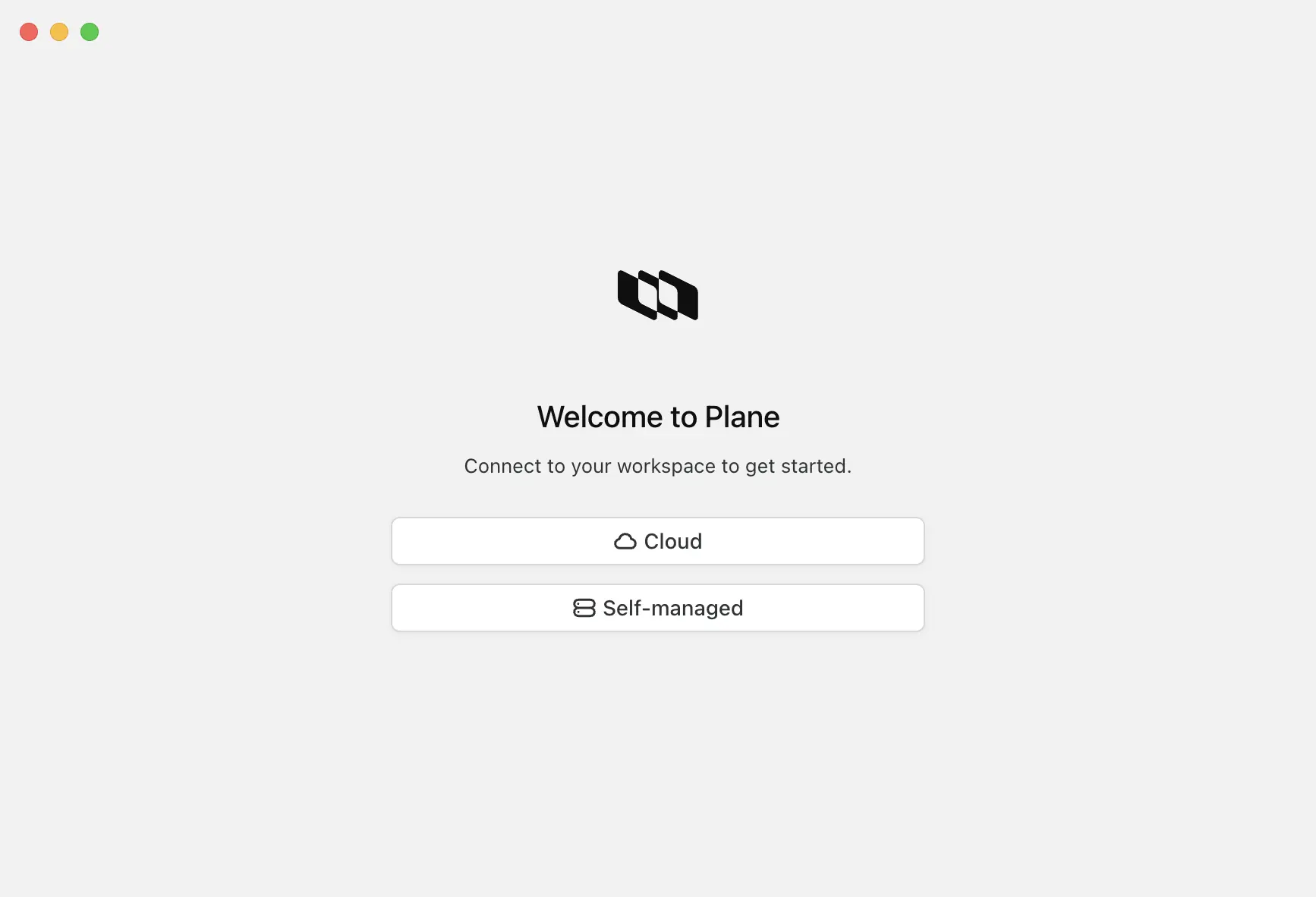
| The first time you open the app, you see a **Welcome to Plane** screen asking how you want to connect. This lets the same app work with Plane Cloud or a self-managed deployment. | ||
|
|
||
|  | ||
|
|
||
| ### Cloud | ||
|
|
||
| Click **Cloud** and enter your credentials to log in. | ||
|
|
||
| ### Self-managed | ||
|
|
||
| Click **Self-managed**, then enter your instance URL and click **Connect**. | ||
|
|
||
| The app verifies the address before loading it. If the URL is empty, not a valid URL, or not a Plane instance, the app tells you so you can correct it. | ||
|
|
||
| The app remembers your instance, so you go straight to it on future launches. To connect somewhere else later, use **Help → Change instance** (see [Switch instance or reset the app](#switch-instance-or-reset-the-app)). | ||
|
|
||
| ## Sign in | ||
|
|
||
| After connecting to an instance, you land on its sign-in page. Enter your email to begin. Depending on how the instance is configured, you then either enter a password or a magic code sent to your email. Any enabled OAuth providers (Google, GitHub, GitLab, Gitea) appear as buttons as well. | ||
|
danciaclara marked this conversation as resolved.
|
||
|
|
||
| When you sign in with an OAuth provider, authentication opens in your system's default web browser. Complete it there, and the browser returns you to the desktop app automatically. | ||
|
|
||
| ### Signing in to a self-managed instance | ||
|
|
||
| A few things are specific to self-managed deployments. | ||
|
|
||
| - **Available sign-in methods depend on your instance.** Your administrator chooses which methods are enabled. The sign-in page only shows the ones they have turned on. | ||
| - **SAML, OIDC, and LDAP are not yet available in the desktop app.** Even if your instance uses one of these, the desktop app supports only email and password, magic code, and the OAuth providers listed above. If your organization signs in exclusively through SAML, OIDC, or LDAP, use the Plane web app in a browser instead. | ||
| - **Magic code requires email to be configured.** If your instance has magic code sign-in enabled but no email (SMTP) set up, the code cannot be sent. Use another method or contact your administrator. | ||
| - **If you see "No authentication methods available,"** your administrator has not enabled any sign-in method yet. Contact them. | ||
| - **If the instance has not been set up yet,** you see a "Welcome to Plane" setup screen instead of a sign-in page. The first administrator must complete instance setup before anyone can sign in. | ||
|
|
||
| #### Configure OAuth for desktop | ||
|
|
||
| If your instance uses Google, GitHub, GitLab, or Gitea for sign-in, an administrator must register the desktop callback URIs in each OAuth app before those buttons will work in the desktop app. Configure them in **God Mode → Authentication →** the relevant provider **→ Desktop** section. | ||
|
|
||
| Add the following callback URIs, using your instance URL as the origin: | ||
|
|
||
| - `/auth/desktop/google/callback/` | ||
| - `/auth/desktop/github/callback/` | ||
| - `/auth/desktop/gitlab/callback/` | ||
| - `/auth/desktop/gitea/callback/` | ||
|
|
||
| ## Tabs and windows | ||
|
|
||
| The desktop app works like a browser, so you can keep several parts of Plane open at once. | ||
|
|
||
| ### Tabs | ||
|
|
||
| - **Open a new tab** with the **+** button at the end of the tab bar, or **New tab** (Cmd/Ctrl+T). | ||
| - **Close a tab** with the **X** on the tab, or **Close tab** (Cmd/Ctrl+W). You cannot close the last remaining tab in a window. | ||
| - **Reorder tabs** by dragging them along the tab bar. | ||
| - **Go back and forward** Ctrl+Tab / Ctrl+Shift+Tab for next/previous tab. | ||
|
There was a problem hiding this comment. 🎯 Functional Correctness | 🟡 Minor | ⚡ Quick win Describe tab switching, not history navigation.
🤖 Prompt for AI Agents |
||
| - **Right-click a tab** for quick actions: Copy link, Reload tab, Close tab, Close other tabs, and Close all tabs. | ||
| - **Jump to a tab** with Cmd/Ctrl+1 through Cmd/Ctrl+8, or Cmd/Ctrl+9 for the last tab. | ||
| - **Reopen a closed tab** with Cmd/Ctrl+Shift+T. | ||
|
|
||
| ### Windows | ||
|
|
||
| Open a new window with **File → New window** (Cmd/Ctrl+N). Each window has its own tabs and history, which is useful across multiple monitors. | ||
| Your open windows and tabs are remembered between sessions and restored the next time you launch the app. | ||
|
|
||
| ## Notifications | ||
|
|
||
| The desktop app shows a badge with your unread notification count on the app icon: on the dock on macOS, and on the taskbar on Windows and Linux. This lets you see when something needs your attention without switching to the app. | ||
|
|
||
| For how notifications work in Plane, see [Notifications](/communication-and-collaboration/notifications). | ||
|
|
||
| ## Menus and keyboard shortcuts | ||
|
|
||
| The app has a full menu bar. The most useful items for everyday work: | ||
|
|
||
| | Menu | Item | Shortcut | | ||
| | ---- | --------------------------- | ------------------------------------ | | ||
| | File | New window | Cmd/Ctrl+N | | ||
| | Tab | New tab | Cmd/Ctrl+T | | ||
| | Tab | Close tab | Cmd/Ctrl+W | | ||
| | Tab | Reopen closed tab | Cmd/Ctrl+Shift+T | | ||
| | Tab | Reload tab | Cmd/Ctrl+R | | ||
| | Tab | Next / previous tab | Ctrl+Tab / Ctrl+Shift+Tab | | ||
| | View | Zoom in / out / actual size | Cmd/Ctrl++ / Cmd/Ctrl+- / Cmd/Ctrl+0 | | ||
| | View | Toggle full screen | F11 (or Cmd+Control+F on macOS) | | ||
| | Help | What's new | | | ||
| | Help | Documentation | | | ||
| | Help | Change instance | | | ||
|
|
||
| ## Switch instance or reset the app | ||
|
|
||
| Both actions are in the **Help** menu. | ||
|
|
||
| **Change instance** clears the stored instance address and returns you to the Welcome screen so you can connect to a different Plane Cloud or self-managed instance. | ||
|
|
||
| **Clear stored data** is a full reset. It removes your saved instance settings, windows, tabs, and signed-in session, then restarts the app. The app asks you to confirm first. Use this if the app gets into a bad state. | ||
|
|
||
| ## Automatic updates and What's New | ||
|
|
||
| The desktop app keeps itself up to date automatically. When a compatible update is available, it downloads in the background, and you are notified when it is ready with the option to restart now or later. Restarting applies the update. | ||
|
|
||
| You can also check manually: **Check for updates** is in the Plane menu on macOS, and in the **Help** menu on Windows and Linux. | ||
|
|
||
| After an update, the app shows a **What's New** screen the first time you open the new version, summarizing highlights, enhancements, and fixes. Dismiss it with **Got it** or the Escape key. You can reopen it anytime from **Help → What's New**. | ||
|
|
||
| ### Compatibility | ||
|
|
||
| The desktop app checks that its version works with the instance you connect to. If your app is too old for the instance, it updates itself before continuing. If the instance is older than your app supports, the app either switches to a compatible version or asks for the instance to be upgraded. This keeps the app and your instance in sync so nothing breaks mid-session. | ||
|
|
||
| ## Deep links | ||
|
|
||
| The desktop app registers the `plane://` link scheme. Plane links that use it open directly in the desktop app and navigate to the right place on your connected instance. If the app is closed or minimized when you open a link, it launches or comes to the front. | ||
|
|
||
| ## What's different from the web | ||
|
|
||
| Because the desktop app loads the full Plane web app, feature parity with the web is effectively complete. What the desktop app adds on top is the desktop experience itself: | ||
|
|
||
| - A dedicated app window, separate from your browser | ||
|
danciaclara marked this conversation as resolved.
|
||
| - Tab bar icons reflect the current page/context so open tabs are easier to tell apart. | ||
| - Browser-style tabs and multiple windows, remembered between sessions | ||
| - An unread notification badge on your dock or taskbar | ||
| - `plane://` deep links that open in the app | ||
| - Automatic updates | ||
| - The ability to connect to Plane Cloud or a self-managed instance from the same app | ||
|
|
||
| The app does not have a separate settings panel. Desktop-level actions live in the menu bar (zoom, full screen, change instance, clear data); everything else is the Plane app you already know. | ||

Oops, something went wrong.
Add this suggestion to a batch that can be applied as a single commit.
This suggestion is invalid because no changes were made to the code.
Suggestions cannot be applied while the pull request is closed.
Suggestions cannot be applied while viewing a subset of changes.
Only one suggestion per line can be applied in a batch.
Add this suggestion to a batch that can be applied as a single commit.
Applying suggestions on deleted lines is not supported.
You must change the existing code in this line in order to create a valid suggestion.
Outdated suggestions cannot be applied.
This suggestion has been applied or marked resolved.
Suggestions cannot be applied from pending reviews.
Suggestions cannot be applied on multi-line comments.
Suggestions cannot be applied while the pull request is queued to merge.
Suggestion cannot be applied right now. Please check back later.
There was a problem hiding this comment.
Choose a reason for hiding this comment
The reason will be displayed to describe this comment to others. Learn more.
We should also note that they need to be using desktop app version 3.0.0 or later.