
Visible watermarks, repeating layouts, natural blend modes, personalized batches, and invisible trace IDs for iOS, Android, and Web.

Compose text and image layers, keep their render order under control, and export the finished image on iOS, Android, or Web.
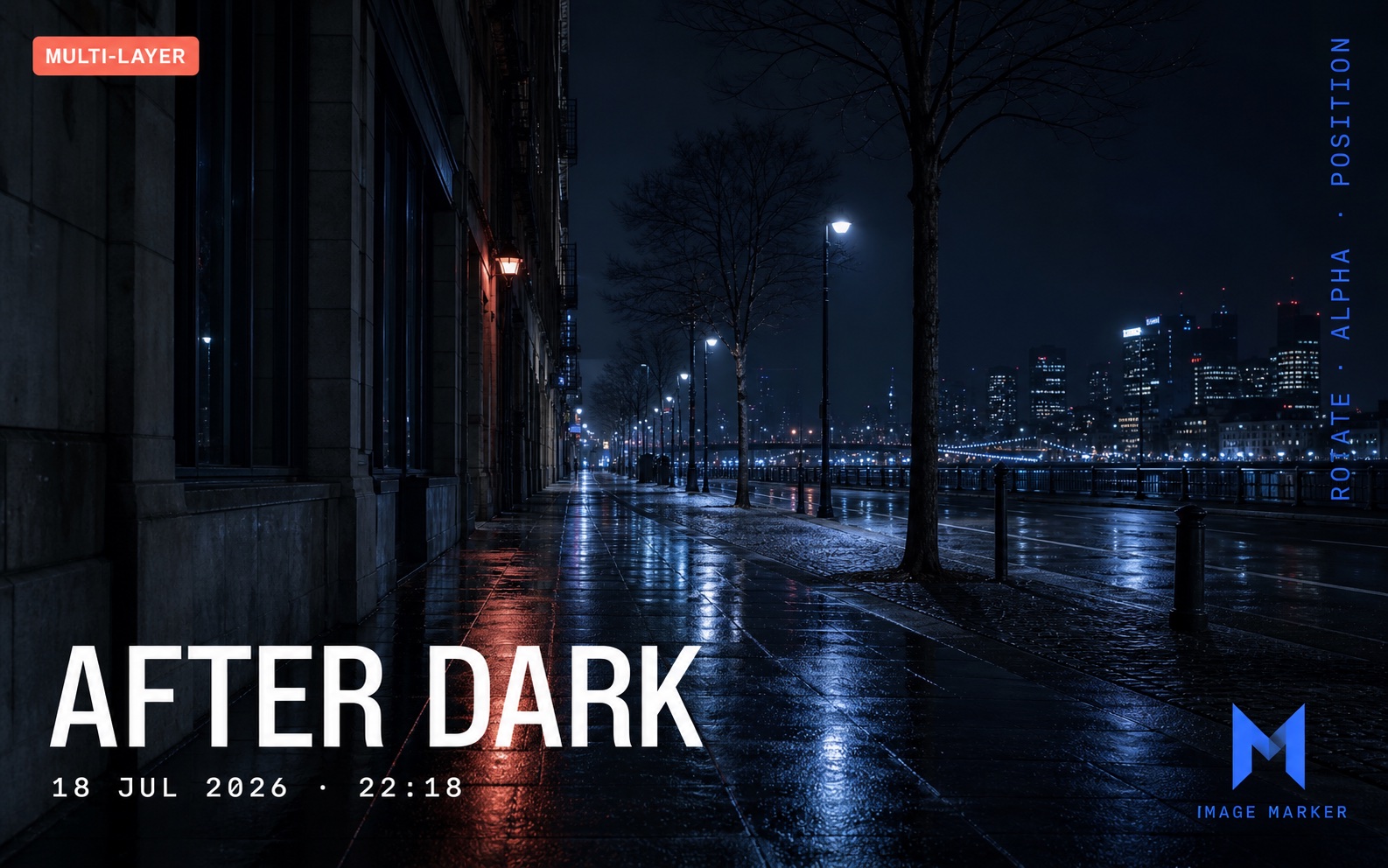
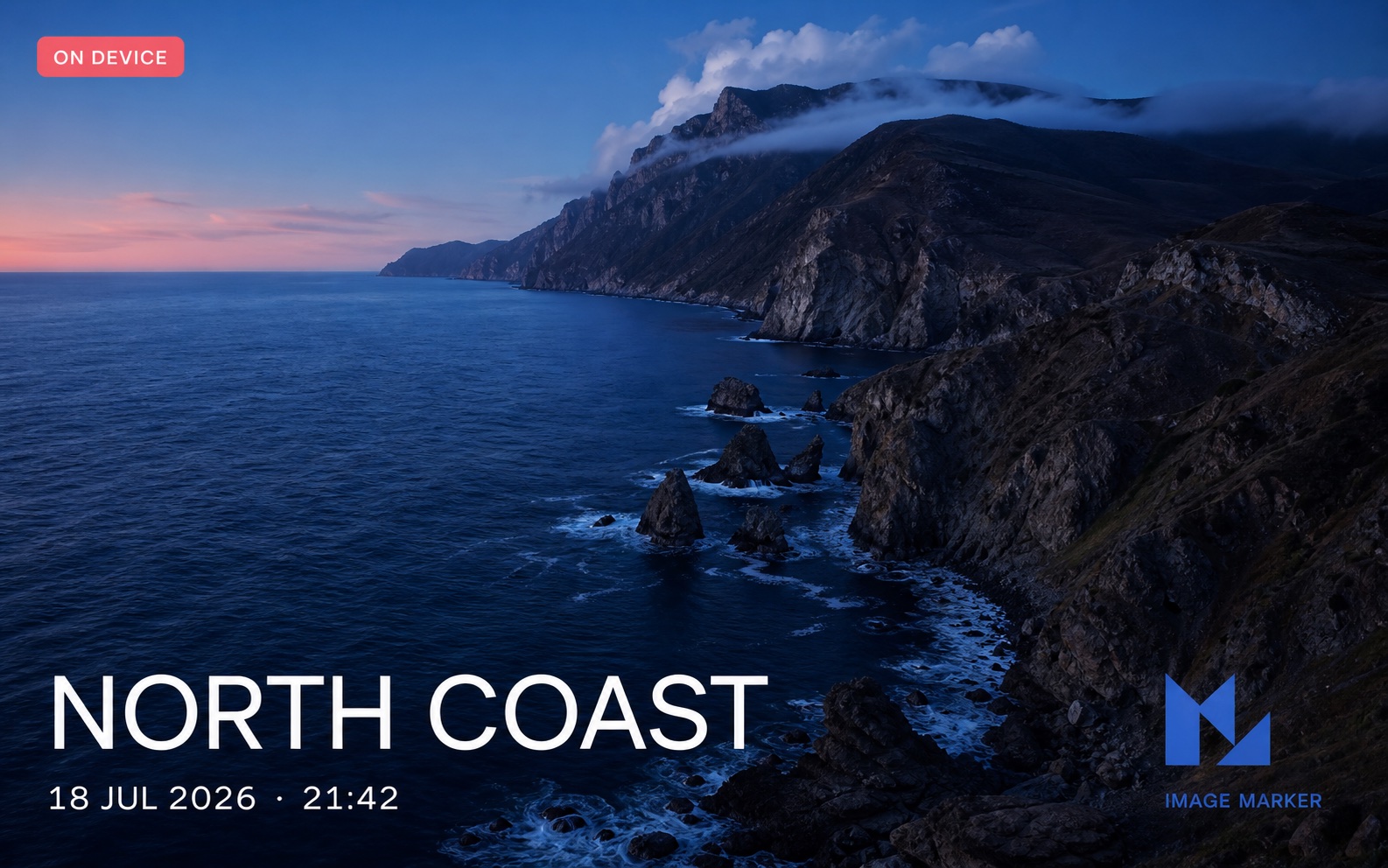
|
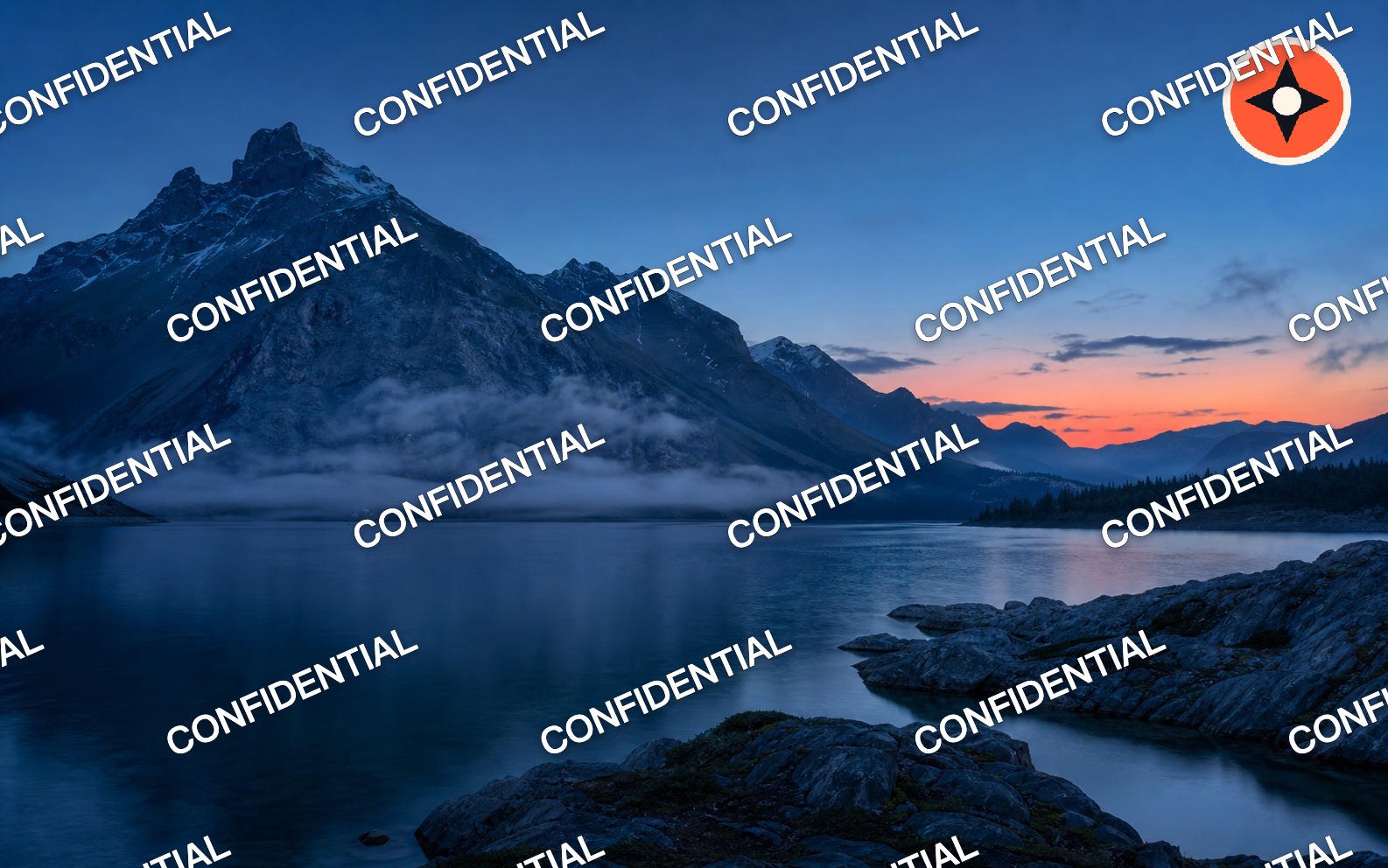
|
| Ready to share. Add titles, metadata, badges, and your logo in one export. |
Protect the whole image. Repeat outlined text or logos with rotation, spacing, and staggered rows. |
npm install react-native-image-marker@^2Install iOS pods and rebuild the native app:
npx pod-installExpo projects must use a development build because this package's native code is not bundled with Expo Go. See the Expo installation steps.
import Marker, { ImageFormat, Position } from 'react-native-image-marker';

const result = await Marker.markText({
  backgroundImage: {
    src: require('./images/background.jpg'),
  },
  watermarkTexts: [
    {
      text: '© Acme Studio',
      alpha: 0.85,
      position: {
        position: Position.bottomRight,
        X: 24,
        Y: 24,
      },
      style: {
        color: '#FFFFFF',
        fontSize: 28,
      },
    },
  ],
  filename: 'marked-photo',
  saveFormat: ImageFormat.jpg,
  quality: 92,
});

console.log(result.uri, result.jobId, result.durationMs);
Core 2 returns a structured MarkerResult. Use result.uri as the native cache-file path or browser-ready data URL. The result also includes the job ID, operation, format, MIME type, duration, and applied metadata policy.
Core 2.1 can read the encoded dimensions, upright display dimensions, format, and EXIF orientation before you build an Editor viewport or Recipe:
const info = await Marker.getImageInfo(
  require('./images/background.jpg')
);

console.log(info.width, info.height); // Upright display dimensions
console.log(info.encodedWidth, info.encodedHeight);
console.log(info.format, info.orientation, info.rotationDegrees);
requiresNormalization is true when the encoded orientation is not upright;
mirrored identifies reflected EXIF orientations. The same API accepts native
image sources and Web URLs, data URLs, Blob, File, or loaded browser images.
Core 2.1 adds cross-platform text-box controls for captions, labels, and right-to-left content:
const result = await Marker.markText({
  backgroundImage: { src: require('./images/background.jpg') },
  watermarkTexts: [
    {
      text: 'A long multilingual caption · 多语言说明 · وصف متعدد اللغات',
      position: { position: Position.bottomCenter, Y: 32 },
      style: {
        color: '#FFFFFF',
        fontSize: 32,
        maxWidth: '80%',
        lineHeight: 40,
        letterSpacing: 0.5,
        direction: 'auto',
        wrap: 'word',
        maxLines: 2,
        overflow: 'ellipsis',
        textAlign: 'center',
      },
    },
  ],
  saveFormat: ImageFormat.png,
});
maxWidth accepts output pixels or a percentage of the background width.
lineHeight and letterSpacing are measured in output pixels. Use
wrap: 'character' for scripts or labels that should break at grapheme
boundaries, or wrap: 'none' for a single unwrapped line.
The same layout and strokeStyle options work on iOS, Android, and Web. Tiled layers can use pixel or percentage gaps and stagger every second row.
const result = await Marker.markText({
  backgroundImage: { src: require('./images/background.jpg') },
  watermarkTexts: [
    {
      text: 'CONFIDENTIAL',
      alpha: 0.55,
      layout: {
        type: 'tile',
        gapX: '8%',
        gapY: '7%',
        offsetX: '-2%',
        stagger: true,
      },
      style: {
        color: '#FFFFFF88',
        fontSizeRatio: 0.024,
        rotate: -24,
        strokeStyle: { color: '#0F172A88', width: 2 },
      },
    },
  ],
  saveFormat: ImageFormat.jpg,
  quality: 92,
});
Use the same layout object on watermarkImages to repeat a logo. A tiled layer cannot also set position; invalid combinations fail with a clear error.
Set blendMode on a text or image layer when a plain overlay looks too flat. The same six modes—normal, multiply, screen, overlay, darken, and lighten—work on iOS, Android, and Web.
const result = await Marker.mark({
  backgroundImage: { src: require('./images/background.jpg') },
  watermarks: [
    {
      type: 'image',
      src: require('./images/logo.png'),
      blendMode: 'multiply',
      position: { position: Position.center },
      scale: 0.7,
      alpha: 0.85,
    },
    {
      type: 'text',
      text: 'SCREEN LIGHT',
      blendMode: 'screen',
      position: { position: Position.bottomCenter, Y: 32 },
      style: { color: '#FFE9B8', fontSize: 36, bold: true },
    },
  ],
  saveFormat: ImageFormat.png,
});Save ordered layers once, then inject safe string, number, or boolean variables for each image. Templates also expose {{index}} and {{filename}}; visibleWhen can include or skip a layer without rebuilding the recipe. Results stay in input order, and one failed image does not stop the others.
const recipe = Marker.createRecipe({
  schemaVersion: 2,
  layers: [
    {
      type: 'text',
      text: '© {{studio}} · {{filename}} · #{{index}}',
      position: { position: Position.bottomRight, X: 24, Y: 24 },
      style: { color: '#FFFFFF', fontSize: 28 },
    },
    {
      type: 'image',
      src: require('./images/logo.png'),
      visibleWhen: { variable: 'showLogo', equals: true },
      position: { position: Position.topRight, X: 24, Y: 24 },
      scale: 0.25,
    },
  ],
  output: {
    saveFormat: ImageFormat.jpg,
    quality: 90,
  },
});

const controller = new AbortController();
const results = await recipe.applyMany(
  photos.map((src, index) => ({
    backgroundImage: { src },
    filename: `photo-${index + 1}`,
    variables: { studio: 'Acme Studio', showLogo: index % 2 === 0 },
  })),
  {
    concurrency: 2,
    signal: controller.signal,
    onProgress: ({ settled, total }) => console.log(`${settled}/${total}`),
  }
);

const savedRecipe = JSON.stringify(recipe.toJSON());Single jobs accept cancellation, timeout, and progress as a second argument.
Failures use stable ImageMarkerError.code values and share a jobId with
progress and successful results.
const controller = new AbortController();
const result = await Marker.mark(options, {
  signal: controller.signal,
  timeoutMs: 15_000,
  onProgress: ({ jobId, phase, progress }) =>
    console.log(jobId, phase, progress),
});
On Web, request Blob results explicitly when processing many files without Data URL expansion:
const blobRecipe = Marker.createRecipe(recipeOptions, {
  resultType: 'blob',
});
const blob = await blobRecipe.apply({ backgroundImage: { src: file } });
Blob mode is Web-only and does not create object URLs. The caller controls URL.createObjectURL() and URL.revokeObjectURL() when a preview is needed.
embedInvisible writes a short authenticated locator into the final pixels without adding a visible layer. detectInvisible recovers it later with the same key. The *Many methods create and verify recipient-specific copies while preserving input order. Use random asset or distribution IDs—not names, email addresses, or other personal data.
const key = await loadWatermarkKeyFromTrustedStorage();
const marked = await Marker.embedInvisible({
  image: { src: require('./images/background.jpg') },
  payload: 'asset-42', // 1–12 UTF-8 bytes
  key, // at least 16 UTF-8 bytes
  strength: 'robust',
  saveFormat: ImageFormat.png,
});

const detection = await Marker.detectInvisible({
  image: { src: { uri: marked.uri } },
  key,
  strength: 'robust',
  search: 'robust',
});

if (detection.detected) {
  console.log(detection.payload, detection.confidence);
}
For distribution batches, call Marker.embedInvisibleMany(inputs, { concurrency, signal, onProgress }) and Marker.detectInvisibleMany(inputs). Robust detection covers limited crops and tested 0.9×–1.1× resize hypotheses; a successful resized detection reports scale.
On Web, copy lib/worker/invisible-watermark.js to a trusted same-origin static directory and pass worker: { scriptUrl, signal, onProgress } to move detection off the main thread and make an active detection cancellable.
For trusted services, import createInvisibleWatermarkRuntime only from react-native-image-marker/trace-runtime.js and inject your own RGBA image codec. This explicit subpath is not loaded by the normal React Native entry. The independent Node.js Trace Service example uses Node.js 22 and sharp without adding sharp to this package's production dependencies.
This Beta feature is designed for distribution tracing, not DRM or proof that an image was never edited. JPEG recompression, mild pixel adjustments, and light resizing are covered by the browser test matrix; aggressive crops, resizing outside the tested range, blur, redrawing, and deliberate removal can destroy the mark. Browser code cannot keep a long-lived secret, so production Web workflows should embed on a trusted server or use tightly scoped keys.
For signed provenance, Marker.embedInvisibleWithCredentials() composes the locator with an application-supplied Content Credentials adapter. The optional Node.js C2PA service example keeps the official C2PA runtime and signing material outside the core package. See the invisible watermark guide for the server runtime, Worker, security, and C2PA boundaries.
Need a finished file without installing anything? Use the free online image tools for single or batch watermarks, recipient trace packages, robustness checks, and Content Credentials inspection. Images stay local.
Try the live playground when you want to compose every SDK layer, inspect its options, or embed and verify an invisible trace ID.
The Web renderer accepts URL strings, { uri }, data URLs, Blob, File, and loaded browser images. In Expo Web, resolve a numeric bundled asset first:
import { Asset } from 'expo-asset';

const background = Asset.fromModule(require('./images/background.jpg'));
const webSource = { uri: background.uri };
Browser Canvas and native graphics stacks share the API and positioning model but are not guaranteed to be pixel-identical. Fonts, decoding, antialiasing, and JPEG encoding can differ.
The independently versioned
react-native-image-marker-editor@0.3.0 package provides formal Toolbar,
Inspector, Layer, and Asset panels; multi-selection, grouping, alignment,
clipboard, handles, zoom/pan, templates, autosave, and plugins. It requires
Core ^2.1.0 and delegates image inspection, preview, and encoding back to
Core.
npm install react-native-image-marker@^2.1 \
  react-native-image-marker-editor@^0.3
Import react-native-image-marker-editor/core-adapter only when the editor
should invoke Core directly; a custom adapter can render on a server instead.
Core 2.1 automatically resolves the decoded source size and orientation when
the Editor receives source and the Core adapter.
Start with the repository's
complete Editor component and coordinate guide, then see the
Editor integration guide,
generated API reference,
or open the Editor workflow.
Every renderer and tool uses the same platform-neutral Recipe v2 document:
npm install @image-marker/recipe@^0.1@image-marker/recipe provides schema, validation, migration, templates,
serialization, immutable layer operations, and a published JSON Schema without
depending on React, React Native, a browser, or an image renderer. See the
Recipe guide.
Render the same document in a Node.js service without React Native:
npm install @image-marker/node@^0.1 sharp@^0.35@image-marker/node accepts file paths, buffers, typed arrays, and readable
streams; it supports file/stream output, inspection, bounded batches, retry,
cancellation, progress, and authenticated lossless PNG locators. See the
Node guide and
package README.
For terminal and CI automation:
npm install --global @image-marker/cli@^0.1
image-marker --help
The CLI provides init, validate, migrate, render, batch, inspect,
embed, and detect, plus stable exit codes, JSON output, atomic writes, and
stdin/stdout support. See the
CLI guide and
package README.
| Method | Use it for |
|---|---|
Marker.markText |
One or many text layers |
Marker.markImage |
One or many logo, icon, or image layers |
Marker.mark |
Ordered text and image layers in one render pass |
Marker.getImageInfo |
Read dimensions, format, and orientation |
Marker.createRecipe |
Reusable, personalized batch workflows |
Marker.embedInvisible |
Write an authenticated short trace ID |
Marker.detectInvisible |
Recover and verify an invisible trace ID |
Marker.embedInvisibleMany / detectInvisibleMany |
Process ordered trace batches |
Marker.embedInvisibleWithCredentials |
Add a signed provenance adapter workflow |
Layers render in array order, so later layers draw over earlier layers. markText and markImage remain supported; use mark when mixed layer order matters.
- iOS 13 or newer
- Android API 24 or newer
- Modern browsers with Canvas 2D / React Native Web
- React Native New Architecture support since library v1.3.0
- Legacy bridge fallback with the same typed public contract
- Expo development builds through native autolinking
- CI coverage for RN 0.73 legacy/new architecture, RN 0.86 New Architecture, and Expo SDK 57 / RN 0.86
See the full compatibility guide when maintaining an older React Native app.
- 简体中文文档
- Installation
- What’s new in Core 2
- Live playground
- Free online image tools
- Guides
- Visual cookbook
- Invisible trace watermarks
- Editor usage guide
- Optional interaction editor
- Editor API reference
- Troubleshooting
- API reference
- React Native example — full Image Marker Lab and architecture status
- Expo example — native development-build workflow plus a dedicated React Native Web entry
- C2PA service example — optional Node.js signing and verification adapter
See CONTRIBUTING.md for the development and release workflow.